2016年7月8日 星期五
Custom Android Media Controller

The default media controller of Android typically contains the buttons like "Play/Pause", "Rewind", "Fast Forward" and a progress slider. Instead of "Rewind" and "Fast Forward" buttons, sometimes what we need is a full screen toggle button. Based on this StackOverflow post, we can implement our own media controller instead of scratching in this post.
Pre-Conditions
- Download VideoControllerView.java and change the package name to match your project
- Download media_controller.xml into your project’s layout folder
- Download the 4 images into your project’s drawable folder: ic_media_play.png, ic_media_pause.png, ic_media_fullscreen_shrink.png and ic_media_fullscreen_stretch.png

- Visit Android Holo Colors Generator to create the style of SeekBar, and put them in drawable(or mipmap) and values/style.xml

style.xml

Create an Activity(FullscreenVideoActivity.java) with Layout(activity_fullscreen_video.xml)
FullscreenVideoActivity.java
- Initial MediaPlayer and VideoControlView
- Implement interface SurfaceHolder.Callback
// Implement SurfaceHolder.Callback @Override public void surfaceChanged(SurfaceHolder holder, int format, int width, int height) {} @Override public void surfaceCreated(SurfaceHolder holder) { mediaPlayer.setDisplay(holder); mediaPlayer.prepareAsync(); } @Override public void surfaceDestroyed(SurfaceHolder holder) {} // End SurfaceHolder.Callback - Implement interface MediaPlayer.OnPreparedListener
// Implement MediaPlayer.OnPreparedListener @Override public void onPrepared(MediaPlayer mp) { controller.setMediaPlayer(this); controller.setAnchorView((FrameLayout) findViewById(R.id.videoSurfaceContainer)); mediaPlayer.start(); } // End MediaPlayer.OnPreparedListener - Implement interface VideoControllerView.MediaPlayerControl
In the project, we implement toggleFullScreen() and isFullScreen() to switch between normal(PORTRAIT) and full-screen mode(LANDSCAPE).// Implement VideoMediaController.MediaPlayerControl @Override public boolean canPause() { return true; } @Override public boolean canSeekBackward() { return true; } @Override public boolean canSeekForward() { return true; } @Override public int getBufferPercentage() { return 0; } @Override public int getCurrentPosition() { return mediaPlayer.getCurrentPosition(); } @Override public int getDuration() { return mediaPlayer.getDuration(); } @Override public boolean isPlaying() { return mediaPlayer.isPlaying(); } @Override public void pause() { mediaPlayer.pause(); } @Override public void seekTo(int i) { mediaPlayer.seekTo(i); } @Override public void start() { mediaPlayer.start(); } @Override public boolean isFullScreen() { boolean isFullScreen = (getResources().getConfiguration().orientation==2); Log.d(TAG, "isFullScreen: "+isFullScreen); return isFullScreen; } @Override public void toggleFullScreen() { Log.d(TAG, "toggleFullScreen"); mediaPlayer.pause(); if(getResources().getConfiguration().orientation==1){ this.setRequestedOrientation(ActivityInfo.SCREEN_ORIENTATION_LANDSCAPE); }else{ this.setRequestedOrientation(ActivityInfo.SCREEN_ORIENTATION_PORTRAIT); } } - Implement touch event to show media controller
//Show the media controller @Override public boolean onTouchEvent(MotionEvent event) { controller.show(); return false; }
public class FullscreenVideoActivity extends Activity implements SurfaceHolder.Callback,
        MediaPlayer.OnPreparedListener, VideoControllerView.MediaPlayerControl {
    private String TAG = "FullscreenVideoActivity";
    SurfaceView videoSurface;
    private MediaPlayer mediaPlayer;
    private VideoControllerView controller;

    @Override
    protected void onCreate(Bundle savedInstanceState) {
        super.onCreate(savedInstanceState);
        setContentView(R.layout.activity_fullscreen_video);
        videoSurface = (SurfaceView) findViewById(R.id.videoSurface);
        SurfaceHolder videoHolder = videoSurface.getHolder();
        videoHolder.addCallback(this);
        String videoPath =  "android.resource://" + getPackageName() + "/" + R.raw
                .sample_video;
        mediaPlayer = new MediaPlayer();
        controller = new VideoControllerView(this);
        try {
            mediaPlayer.setAudioStreamType(AudioManager.STREAM_MUSIC);
            mediaPlayer.setDataSource(this, Uri.parse(videoPath));
            mediaPlayer.setOnPreparedListener(this);
        } catch (IllegalArgumentException | SecurityException | IllegalStateException |
                IOException e) {
            e.printStackTrace();
        }
    }
}
activity_fullscreen_video.xml
- Default layout(PORTRAIT)
- Create LANDSCAPE layout
Create a folder named layout-land in res, and create a layout file with the same name as activity_fullscreen_video.xml in it.

Comment the unused component in VideoControllerView.java
private void initControllerView(View v) {
    mPauseButton = (ImageButton) v.findViewById(R.id.pause);
    if (mPauseButton != null) {
        mPauseButton.requestFocus();
        mPauseButton.setOnClickListener(mPauseListener);
    }

    mFullscreenButton = (ImageButton) v.findViewById(R.id.fullscreen);
    if (mFullscreenButton != null) {
        mFullscreenButton.requestFocus();
        mFullscreenButton.setOnClickListener(mFullscreenListener);
    }

//        mFfwdButton = (ImageButton) v.findViewById(R.id.ffwd);
//        if (mFfwdButton != null) {
//            mFfwdButton.setOnClickListener(mFfwdListener);
//            if (!mFromXml) {
//                mFfwdButton.setVisibility(mUseFastForward ? View.VISIBLE : View.GONE);
//            }
//        }
//
//        mRewButton = (ImageButton) v.findViewById(R.id.rew);
//        if (mRewButton != null) {
//            mRewButton.setOnClickListener(mRewListener);
//            if (!mFromXml) {
//                mRewButton.setVisibility(mUseFastForward ? View.VISIBLE : View.GONE);
//            }
//        }

    // By default these are hidden. They will be enabled when setPrevNextListeners() is called
//        mNextButton = (ImageButton) v.findViewById(R.id.next);
//        if (mNextButton != null && !mFromXml && !mListenersSet) {
//            mNextButton.setVisibility(View.GONE);
//        }
//        mPrevButton = (ImageButton) v.findViewById(R.id.prev);
//        if (mPrevButton != null && !mFromXml && !mListenersSet) {
//            mPrevButton.setVisibility(View.GONE);
//        }

    mProgress = (SeekBar) v.findViewById(R.id.mediacontroller_progress);
    if (mProgress != null) {
        if (mProgress instanceof SeekBar) {
            SeekBar seeker = (SeekBar) mProgress;
            seeker.setOnSeekBarChangeListener(mSeekListener);
        }
        mProgress.setMax(1000);
    }

    mEndTime = (TextView) v.findViewById(R.id.time);
    mCurrentTime = (TextView) v.findViewById(R.id.time_current);
    mFormatBuilder = new StringBuilder();
    mFormatter = new Formatter(mFormatBuilder, Locale.getDefault());

    installPrevNextListeners();
}
Result
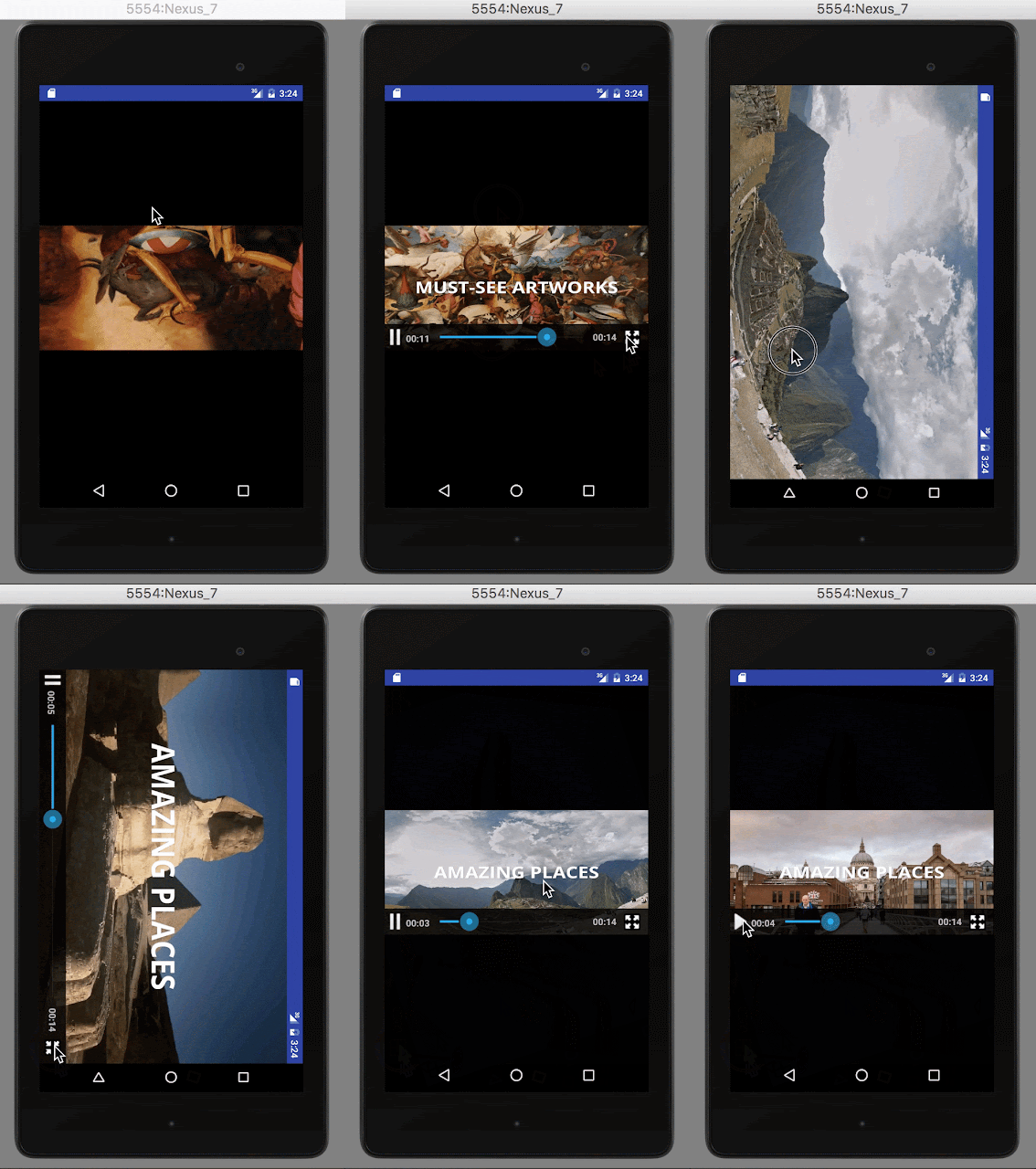
2016年6月26日 星期日
Building a Simple Video Player
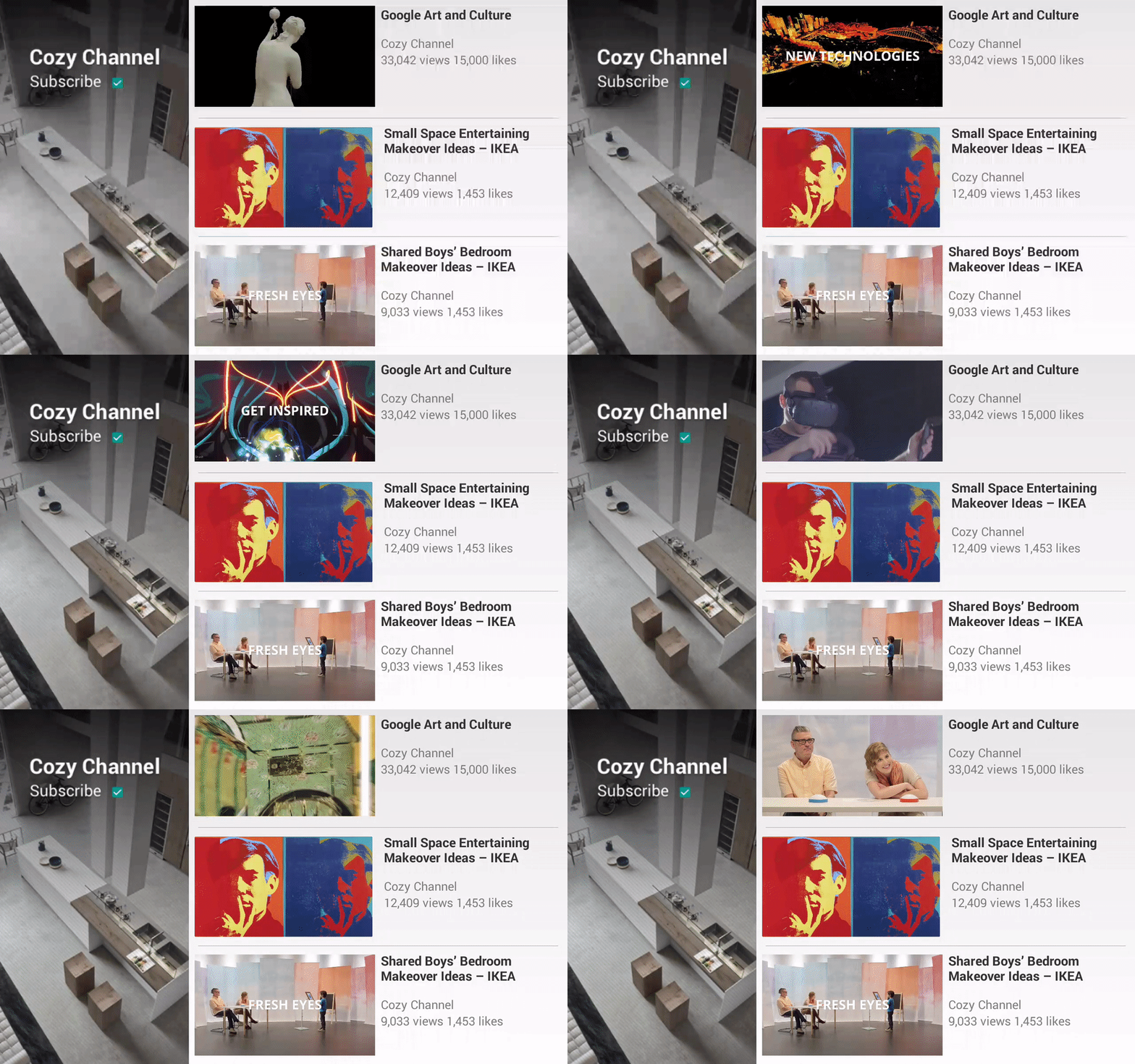
In this exercise,
- A small VideoView without media controller will auto play video at the beginning of launching app;
- If we single touch the VideoView, it will activate full screen mode and resume it at the stopped position in small VideoView;
- If we touch the back button in full screen mode, it will return to the small VideoView and and resume it at the stopped position in full screen mode.
Basic VideoView
- Create an empty project
- Create a folder named raw in res
- Add a local video in MP4 format in raw folder

- Create a MainActivity with layout(activity_main.xml)
activity_main.xml
MainActivity.java
public class MainActivity extends AppCompatActivity {
    private String TAG = "MainActivity";
    private VideoView videoView;
    private String videoPath;
    @Override
    protected void onCreate(Bundle savedInstanceState) {
        super.onCreate(savedInstanceState);
        setRequestedOrientation(ActivityInfo.SCREEN_ORIENTATION_LANDSCAPE);
        setContentView(R.layout.activity_main);
        videoView = (VideoView) this.findViewById(R.id.video_view);
        videoPath = "android.resource://" + getPackageName() + "/" + R.raw
                .google_arts_and_culture;
        videoView.setVideoURI(Uri.parse(videoPath));
        videoView.start();
    }
}
Full Screen VideoView with MediaController
Create a FullscreenVideoActivity with layout(activity_fullscreen_video.xml)activity_fullscreen_video.xml
FullscreenVideoActivity.java
public class FullscreenVideoActivity extends Activity {
    private String TAG = "FullscreenVideoActivity";
    private VideoView videoView;
    private MediaController mc;
    private String videoPath;
    @Override
    protected void onCreate(Bundle savedInstanceState) {
        super.onCreate(savedInstanceState);
        setContentView(R.layout.activity_fullscreen_video);
        mc = new MediaController(this);
        videoView = (VideoView) this.findViewById(R.id.fullscreen_video_view);
        videoView.setMediaController(mc);
        videoPath = "android.resource://" + getPackageName() + "/" + R.raw
                .google_arts_and_culture;
        videoView.setVideoURI(Uri.parse(videoPath));
        videoView.start();
    }
}
From Basic VideoView into Full Screen Mode
Attaching a SimpleOnGestureListener to basic the VideoView for triggering full screen.MainActivity.java
public class MainActivity extends AppCompatActivity {
    private String TAG = "MainActivity";
    private int stopPosition;
    private VideoView videoView;
    private String videoPath;

    @Override
    protected void onCreate(Bundle savedInstanceState) {
        super.onCreate(savedInstanceState);
        setRequestedOrientation(ActivityInfo.SCREEN_ORIENTATION_LANDSCAPE);
        setContentView(R.layout.activity_main);
        videoView = (VideoView) this.findViewById(R.id.video_view);
        videoPath = "android.resource://" + getPackageName() + "/" + R.raw
                .google_arts_and_culture;
        videoView.setVideoURI(Uri.parse(videoPath));
        videoView.start();
        final GestureDetector gestureDetector = new GestureDetector(this, gestureListener);
        videoView.setOnTouchListener(new View.OnTouchListener() {
            @Override
            public boolean onTouch(View v, MotionEvent event) {
                return gestureDetector.onTouchEvent(event);
            }
        });
    }

    final GestureDetector.SimpleOnGestureListener gestureListener =
            new GestureDetector.SimpleOnGestureListener() {
        @Override
        public boolean onDown(MotionEvent event) {
            return true;
        }

        @Override
        public boolean onSingleTapUp(MotionEvent event) {
            Log.e(TAG, "onSingleTapUp");
            return true;
        }
        @Override
        public boolean onSingleTapConfirmed(MotionEvent e) {
            Log.e(TAG, "onSingleTapConfirmed");
            videoView.pause();
            stopPosition = videoView.getCurrentPosition();
            Intent intent = new Intent(MainActivity.this, FullscreenVideoActivity.class);
            intent.putExtra("videoPath", videoPath);
            intent.putExtra("stopPosition", stopPosition);
            startActivity(intent);
            return true;
        }

        @Override
        public void onLongPress(MotionEvent e) {
            super.onLongPress(e);
            Log.e(TAG, "onLongPress");
        }

        @Override
        public boolean onDoubleTap(MotionEvent e) {
            Log.e(TAG, "onDoubleTap");
            return super.onDoubleTap(e);
        }
    };
}
FullscreenVideoActivity.javapublic class FullscreenVideoActivity extends Activity {
private String TAG = "FullscreenVideoActivity";
private VideoView videoView;
private MediaController mc;
private String videoPath;
private int stopPosition;
@Override
protected void onCreate(Bundle savedInstanceState) {
super.onCreate(savedInstanceState);
setContentView(R.layout.activity_fullscreen_video);
Bundle params = getIntent().getExtras();
videoPath = params.getString("videoPath");
stopPosition = params.getInt("stopPosition");
mc = new MediaController(this);
videoView = (VideoView) this.findViewById(R.id.fullscreen_video_view);
videoView.setMediaController(mc);
videoView.setVideoURI(Uri.parse(videoPath));
Log.e(TAG, "FullscreenVideoView intent stop position: " + stopPosition);
videoView.seekTo(stopPosition);
videoView.start();
}
}
Back to Basic VideoView from Full Screen Mode
Overriding onResume() method of MainActivity for getting bundle with video stop position and file path from FullscreenVideoActivity.MainActivity.java
@Override
protected void onResume() {
    super.onResume();
    Bundle params = getIntent().getExtras();
    if(null != params){
        Log.e(TAG, "VideoView intent stop position: " + stopPosition);
        videoPath = params.getString("videoPath");
        stopPosition = params.getInt("stopPosition");
        videoView.seekTo(stopPosition);
        videoView.start();
    }
}
FullscreenVideoActivity.javaOverriding onBackPressed() method of FullscreenVideoActivity for going back to MainActivity with video stop position and file path.
@Override
public void onBackPressed() {
    super.onBackPressed();
    videoView.pause();
    stopPosition = videoView.getCurrentPosition();
    Intent intent = new Intent(FullscreenVideoActivity.this, MainActivity.class);
    intent.putExtra("videoPath", videoPath);
    intent.putExtra("stopPosition", stopPosition);
    startActivity(intent);
}
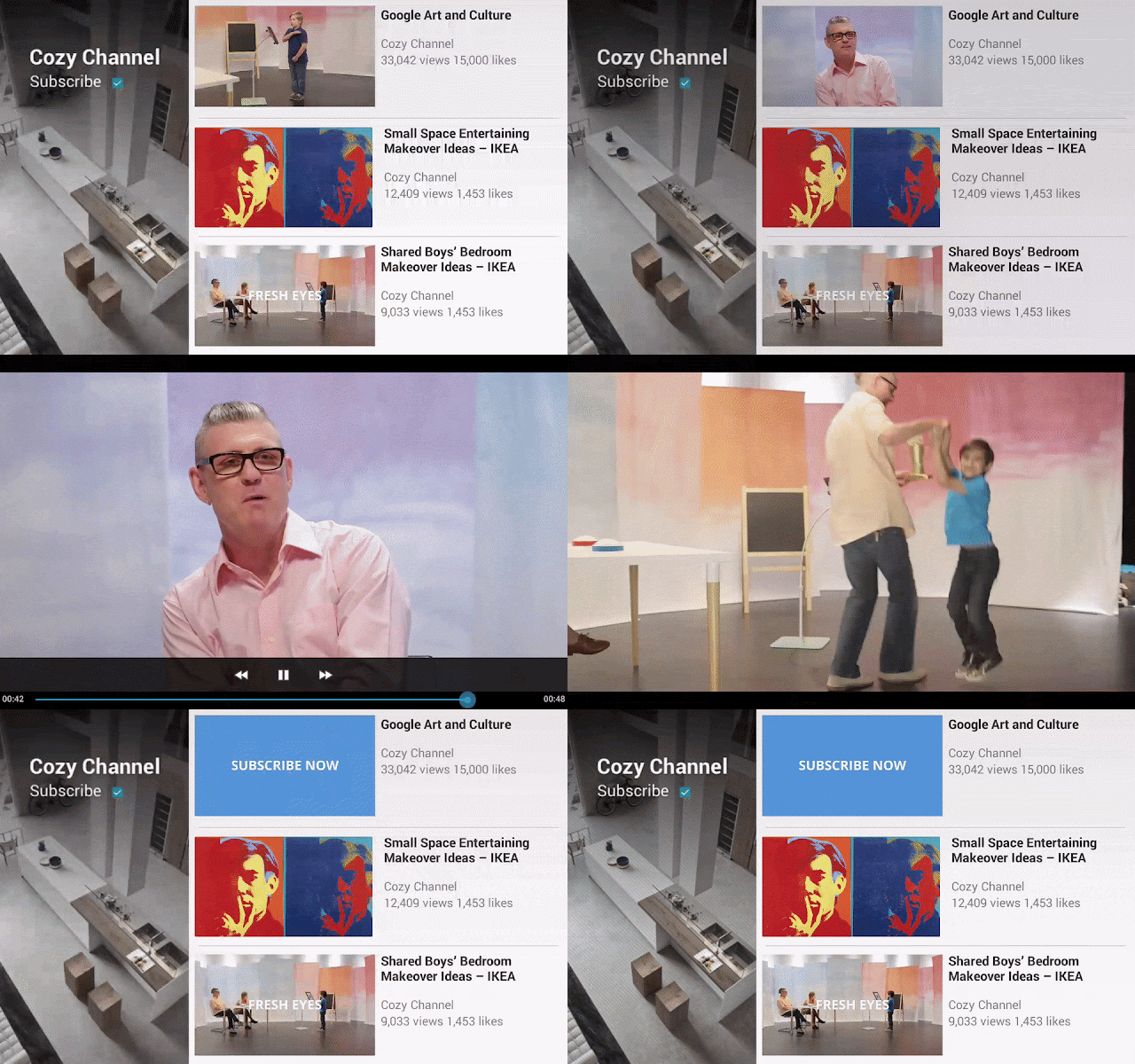
Result
View on GitHub
2016年6月4日 星期六
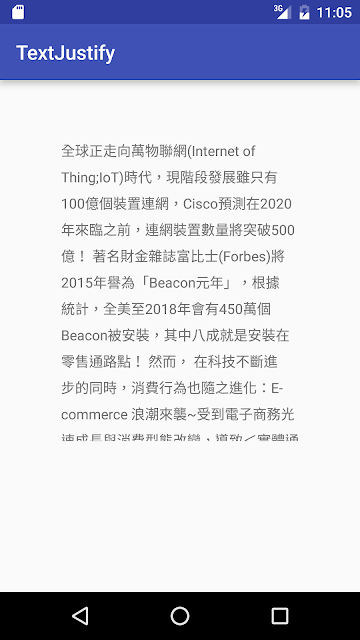
Justifying text in an Android app using a WebView instead of TextView
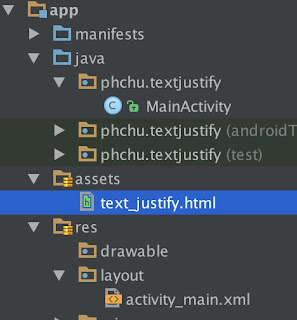
public class MainActivity extends AppCompatActivity {
    private static final String TEXT_JUSTIFY =
           "file:///android_asset/text_justify.html?info=";
    @Override
    protected void onCreate(Bundle savedInstanceState) {
        super.onCreate(savedInstanceState);
        setContentView(R.layout.activity_main);
        WebView desWebView = (WebView)findViewById(R.id.content_description_webview);
        String content = getResources().getString(R.string.content);
        desWebView.getSettings().setJavaScriptEnabled(true);
        desWebView.loadUrl(TEXT_JUSTIFY + content);
    }
}
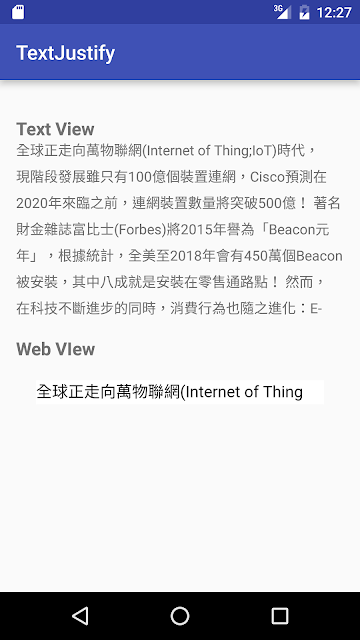
But there is also a problem: words after semicolon(";") of 1st line are disappear. The content string should be encoded before load in html page.
public class MainActivity extends AppCompatActivity {
    private static final String TEXT_JUSTIFY =
           "file:///android_asset/text_justify.html?info=";
    @Override
    protected void onCreate(Bundle savedInstanceState) {
        super.onCreate(savedInstanceState);
        setContentView(R.layout.activity_main);
        WebView desWebView = (WebView)findViewById(R.id.content_description_webview);
        String content = getResources().getString(R.string.content);
        desWebView.getSettings().setJavaScriptEnabled(true);
        try{
            desWebView.loadUrl(TEXT_JUSTIFY + URLEncoder.encode(content, "utf-8"));
        }catch (UnsupportedEncodingException uee){
            uee.printStackTrace();
        }
    }
}
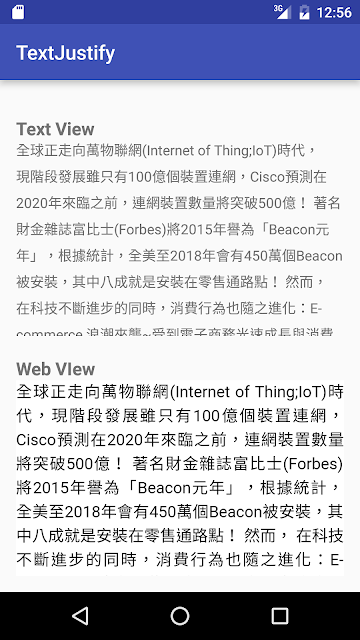
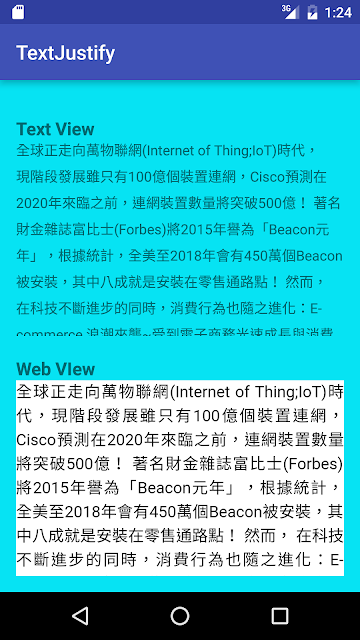
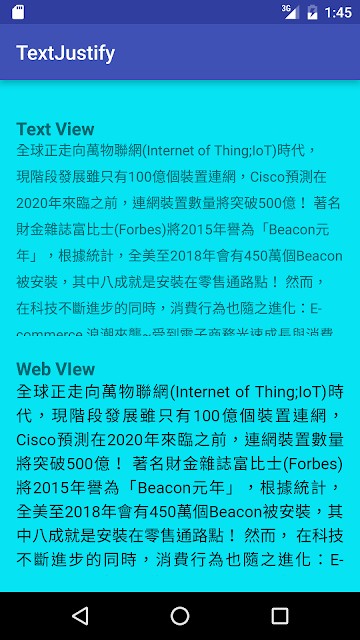
The method still have a problem, if the WebView on a layout with background color, it's not transparent.
public class MainActivity extends AppCompatActivity {
    private static final String TEXT_JUSTIFY =
           "file:///android_asset/text_justify.html?info=";
    @Override
    protected void onCreate(Bundle savedInstanceState) {
        super.onCreate(savedInstanceState);
        setContentView(R.layout.activity_main);
        WebView desWebView = (WebView)findViewById(R.id.content_description_webview);
        String content = getResources().getString(R.string.content);
        desWebView.getSettings().setJavaScriptEnabled(true);
        desWebView.setBackgroundColor(0x00000000);
        try{
            desWebView.loadUrl(TEXT_JUSTIFY + URLEncoder.encode(content, "utf-8"));
        }catch (UnsupportedEncodingException uee){
            uee.printStackTrace();
        }
    }
}
View Source Code on GitHub.