2016年7月8日 星期五
Custom Android Media Controller

The default media controller of Android typically contains the buttons like "Play/Pause", "Rewind", "Fast Forward" and a progress slider. Instead of "Rewind" and "Fast Forward" buttons, sometimes what we need is a full screen toggle button. Based on this StackOverflow post, we can implement our own media controller instead of scratching in this post.
Pre-Conditions
- Download VideoControllerView.java and change the package name to match your project
- Download media_controller.xml into your project’s layout folder
- Download the 4 images into your project’s drawable folder: ic_media_play.png, ic_media_pause.png, ic_media_fullscreen_shrink.png and ic_media_fullscreen_stretch.png

- Visit Android Holo Colors Generator to create the style of SeekBar, and put them in drawable(or mipmap) and values/style.xml

style.xml

Create an Activity(FullscreenVideoActivity.java) with Layout(activity_fullscreen_video.xml)
FullscreenVideoActivity.java
- Initial MediaPlayer and VideoControlView
- Implement interface SurfaceHolder.Callback
// Implement SurfaceHolder.Callback @Override public void surfaceChanged(SurfaceHolder holder, int format, int width, int height) {} @Override public void surfaceCreated(SurfaceHolder holder) { mediaPlayer.setDisplay(holder); mediaPlayer.prepareAsync(); } @Override public void surfaceDestroyed(SurfaceHolder holder) {} // End SurfaceHolder.Callback - Implement interface MediaPlayer.OnPreparedListener
// Implement MediaPlayer.OnPreparedListener @Override public void onPrepared(MediaPlayer mp) { controller.setMediaPlayer(this); controller.setAnchorView((FrameLayout) findViewById(R.id.videoSurfaceContainer)); mediaPlayer.start(); } // End MediaPlayer.OnPreparedListener - Implement interface VideoControllerView.MediaPlayerControl
In the project, we implement toggleFullScreen() and isFullScreen() to switch between normal(PORTRAIT) and full-screen mode(LANDSCAPE).// Implement VideoMediaController.MediaPlayerControl @Override public boolean canPause() { return true; } @Override public boolean canSeekBackward() { return true; } @Override public boolean canSeekForward() { return true; } @Override public int getBufferPercentage() { return 0; } @Override public int getCurrentPosition() { return mediaPlayer.getCurrentPosition(); } @Override public int getDuration() { return mediaPlayer.getDuration(); } @Override public boolean isPlaying() { return mediaPlayer.isPlaying(); } @Override public void pause() { mediaPlayer.pause(); } @Override public void seekTo(int i) { mediaPlayer.seekTo(i); } @Override public void start() { mediaPlayer.start(); } @Override public boolean isFullScreen() { boolean isFullScreen = (getResources().getConfiguration().orientation==2); Log.d(TAG, "isFullScreen: "+isFullScreen); return isFullScreen; } @Override public void toggleFullScreen() { Log.d(TAG, "toggleFullScreen"); mediaPlayer.pause(); if(getResources().getConfiguration().orientation==1){ this.setRequestedOrientation(ActivityInfo.SCREEN_ORIENTATION_LANDSCAPE); }else{ this.setRequestedOrientation(ActivityInfo.SCREEN_ORIENTATION_PORTRAIT); } } - Implement touch event to show media controller
//Show the media controller @Override public boolean onTouchEvent(MotionEvent event) { controller.show(); return false; }
public class FullscreenVideoActivity extends Activity implements SurfaceHolder.Callback,
        MediaPlayer.OnPreparedListener, VideoControllerView.MediaPlayerControl {
    private String TAG = "FullscreenVideoActivity";
    SurfaceView videoSurface;
    private MediaPlayer mediaPlayer;
    private VideoControllerView controller;

    @Override
    protected void onCreate(Bundle savedInstanceState) {
        super.onCreate(savedInstanceState);
        setContentView(R.layout.activity_fullscreen_video);
        videoSurface = (SurfaceView) findViewById(R.id.videoSurface);
        SurfaceHolder videoHolder = videoSurface.getHolder();
        videoHolder.addCallback(this);
        String videoPath =  "android.resource://" + getPackageName() + "/" + R.raw
                .sample_video;
        mediaPlayer = new MediaPlayer();
        controller = new VideoControllerView(this);
        try {
            mediaPlayer.setAudioStreamType(AudioManager.STREAM_MUSIC);
            mediaPlayer.setDataSource(this, Uri.parse(videoPath));
            mediaPlayer.setOnPreparedListener(this);
        } catch (IllegalArgumentException | SecurityException | IllegalStateException |
                IOException e) {
            e.printStackTrace();
        }
    }
}
activity_fullscreen_video.xml
- Default layout(PORTRAIT)
- Create LANDSCAPE layout
Create a folder named layout-land in res, and create a layout file with the same name as activity_fullscreen_video.xml in it.

Comment the unused component in VideoControllerView.java
private void initControllerView(View v) {
    mPauseButton = (ImageButton) v.findViewById(R.id.pause);
    if (mPauseButton != null) {
        mPauseButton.requestFocus();
        mPauseButton.setOnClickListener(mPauseListener);
    }

    mFullscreenButton = (ImageButton) v.findViewById(R.id.fullscreen);
    if (mFullscreenButton != null) {
        mFullscreenButton.requestFocus();
        mFullscreenButton.setOnClickListener(mFullscreenListener);
    }

//        mFfwdButton = (ImageButton) v.findViewById(R.id.ffwd);
//        if (mFfwdButton != null) {
//            mFfwdButton.setOnClickListener(mFfwdListener);
//            if (!mFromXml) {
//                mFfwdButton.setVisibility(mUseFastForward ? View.VISIBLE : View.GONE);
//            }
//        }
//
//        mRewButton = (ImageButton) v.findViewById(R.id.rew);
//        if (mRewButton != null) {
//            mRewButton.setOnClickListener(mRewListener);
//            if (!mFromXml) {
//                mRewButton.setVisibility(mUseFastForward ? View.VISIBLE : View.GONE);
//            }
//        }

    // By default these are hidden. They will be enabled when setPrevNextListeners() is called
//        mNextButton = (ImageButton) v.findViewById(R.id.next);
//        if (mNextButton != null && !mFromXml && !mListenersSet) {
//            mNextButton.setVisibility(View.GONE);
//        }
//        mPrevButton = (ImageButton) v.findViewById(R.id.prev);
//        if (mPrevButton != null && !mFromXml && !mListenersSet) {
//            mPrevButton.setVisibility(View.GONE);
//        }

    mProgress = (SeekBar) v.findViewById(R.id.mediacontroller_progress);
    if (mProgress != null) {
        if (mProgress instanceof SeekBar) {
            SeekBar seeker = (SeekBar) mProgress;
            seeker.setOnSeekBarChangeListener(mSeekListener);
        }
        mProgress.setMax(1000);
    }

    mEndTime = (TextView) v.findViewById(R.id.time);
    mCurrentTime = (TextView) v.findViewById(R.id.time_current);
    mFormatBuilder = new StringBuilder();
    mFormatter = new Formatter(mFormatBuilder, Locale.getDefault());

    installPrevNextListeners();
}
Result
2016年6月26日 星期日
Building a Simple Video Player
In this exercise,
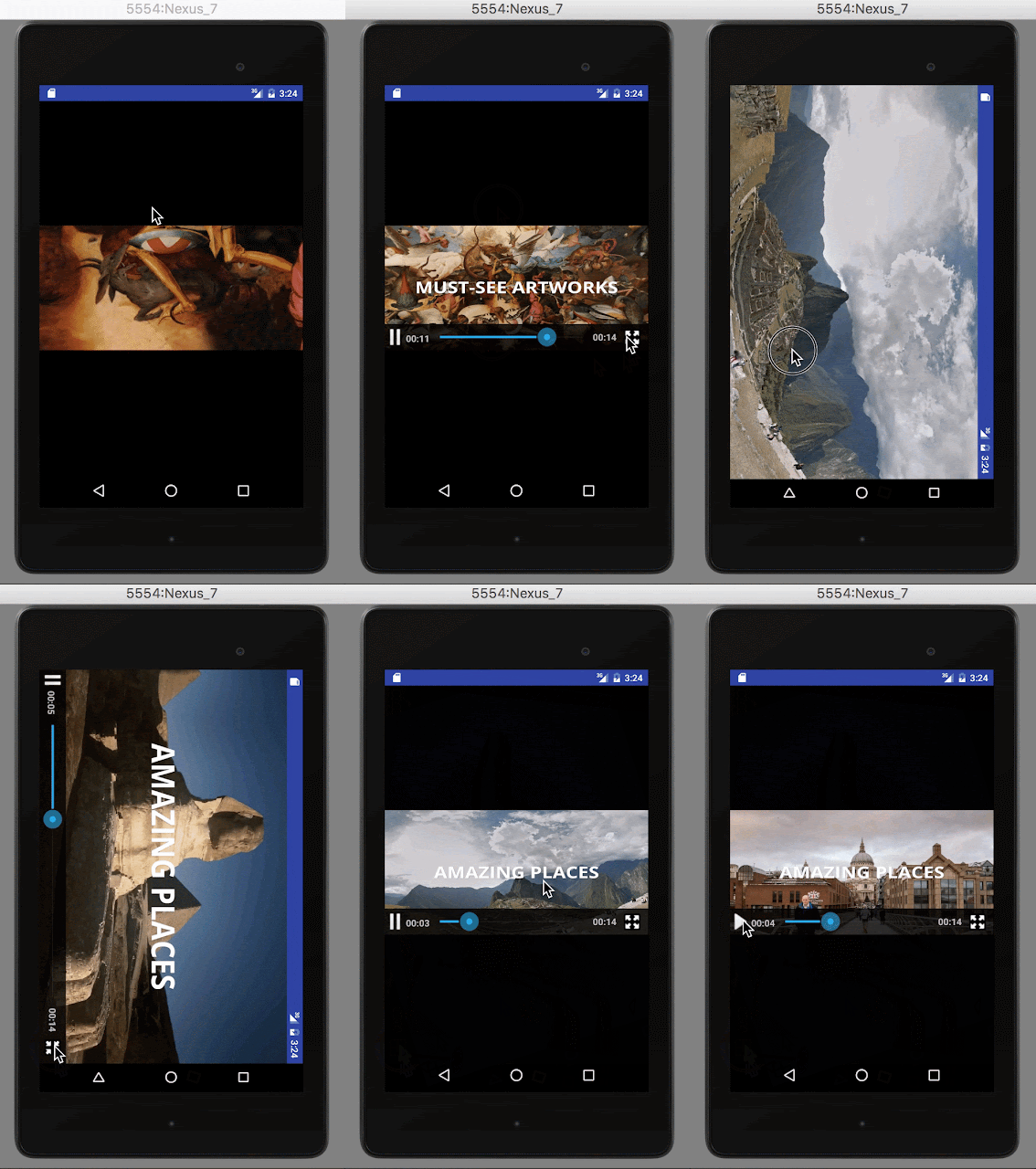
- A small VideoView without media controller will auto play video at the beginning of launching app;
- If we single touch the VideoView, it will activate full screen mode and resume it at the stopped position in small VideoView;
- If we touch the back button in full screen mode, it will return to the small VideoView and and resume it at the stopped position in full screen mode.
Basic VideoView
- Create an empty project
- Create a folder named raw in res
- Add a local video in MP4 format in raw folder

- Create a MainActivity with layout(activity_main.xml)
activity_main.xml
MainActivity.java
public class MainActivity extends AppCompatActivity {
    private String TAG = "MainActivity";
    private VideoView videoView;
    private String videoPath;
    @Override
    protected void onCreate(Bundle savedInstanceState) {
        super.onCreate(savedInstanceState);
        setRequestedOrientation(ActivityInfo.SCREEN_ORIENTATION_LANDSCAPE);
        setContentView(R.layout.activity_main);
        videoView = (VideoView) this.findViewById(R.id.video_view);
        videoPath = "android.resource://" + getPackageName() + "/" + R.raw
                .google_arts_and_culture;
        videoView.setVideoURI(Uri.parse(videoPath));
        videoView.start();
    }
}
Full Screen VideoView with MediaController
Create a FullscreenVideoActivity with layout(activity_fullscreen_video.xml)activity_fullscreen_video.xml
FullscreenVideoActivity.java
public class FullscreenVideoActivity extends Activity {
    private String TAG = "FullscreenVideoActivity";
    private VideoView videoView;
    private MediaController mc;
    private String videoPath;
    @Override
    protected void onCreate(Bundle savedInstanceState) {
        super.onCreate(savedInstanceState);
        setContentView(R.layout.activity_fullscreen_video);
        mc = new MediaController(this);
        videoView = (VideoView) this.findViewById(R.id.fullscreen_video_view);
        videoView.setMediaController(mc);
        videoPath = "android.resource://" + getPackageName() + "/" + R.raw
                .google_arts_and_culture;
        videoView.setVideoURI(Uri.parse(videoPath));
        videoView.start();
    }
}
From Basic VideoView into Full Screen Mode
Attaching a SimpleOnGestureListener to basic the VideoView for triggering full screen.MainActivity.java
public class MainActivity extends AppCompatActivity {
    private String TAG = "MainActivity";
    private int stopPosition;
    private VideoView videoView;
    private String videoPath;

    @Override
    protected void onCreate(Bundle savedInstanceState) {
        super.onCreate(savedInstanceState);
        setRequestedOrientation(ActivityInfo.SCREEN_ORIENTATION_LANDSCAPE);
        setContentView(R.layout.activity_main);
        videoView = (VideoView) this.findViewById(R.id.video_view);
        videoPath = "android.resource://" + getPackageName() + "/" + R.raw
                .google_arts_and_culture;
        videoView.setVideoURI(Uri.parse(videoPath));
        videoView.start();
        final GestureDetector gestureDetector = new GestureDetector(this, gestureListener);
        videoView.setOnTouchListener(new View.OnTouchListener() {
            @Override
            public boolean onTouch(View v, MotionEvent event) {
                return gestureDetector.onTouchEvent(event);
            }
        });
    }

    final GestureDetector.SimpleOnGestureListener gestureListener =
            new GestureDetector.SimpleOnGestureListener() {
        @Override
        public boolean onDown(MotionEvent event) {
            return true;
        }

        @Override
        public boolean onSingleTapUp(MotionEvent event) {
            Log.e(TAG, "onSingleTapUp");
            return true;
        }
        @Override
        public boolean onSingleTapConfirmed(MotionEvent e) {
            Log.e(TAG, "onSingleTapConfirmed");
            videoView.pause();
            stopPosition = videoView.getCurrentPosition();
            Intent intent = new Intent(MainActivity.this, FullscreenVideoActivity.class);
            intent.putExtra("videoPath", videoPath);
            intent.putExtra("stopPosition", stopPosition);
            startActivity(intent);
            return true;
        }

        @Override
        public void onLongPress(MotionEvent e) {
            super.onLongPress(e);
            Log.e(TAG, "onLongPress");
        }

        @Override
        public boolean onDoubleTap(MotionEvent e) {
            Log.e(TAG, "onDoubleTap");
            return super.onDoubleTap(e);
        }
    };
}
FullscreenVideoActivity.javapublic class FullscreenVideoActivity extends Activity {
private String TAG = "FullscreenVideoActivity";
private VideoView videoView;
private MediaController mc;
private String videoPath;
private int stopPosition;
@Override
protected void onCreate(Bundle savedInstanceState) {
super.onCreate(savedInstanceState);
setContentView(R.layout.activity_fullscreen_video);
Bundle params = getIntent().getExtras();
videoPath = params.getString("videoPath");
stopPosition = params.getInt("stopPosition");
mc = new MediaController(this);
videoView = (VideoView) this.findViewById(R.id.fullscreen_video_view);
videoView.setMediaController(mc);
videoView.setVideoURI(Uri.parse(videoPath));
Log.e(TAG, "FullscreenVideoView intent stop position: " + stopPosition);
videoView.seekTo(stopPosition);
videoView.start();
}
}
Back to Basic VideoView from Full Screen Mode
Overriding onResume() method of MainActivity for getting bundle with video stop position and file path from FullscreenVideoActivity.MainActivity.java
@Override
protected void onResume() {
    super.onResume();
    Bundle params = getIntent().getExtras();
    if(null != params){
        Log.e(TAG, "VideoView intent stop position: " + stopPosition);
        videoPath = params.getString("videoPath");
        stopPosition = params.getInt("stopPosition");
        videoView.seekTo(stopPosition);
        videoView.start();
    }
}
FullscreenVideoActivity.javaOverriding onBackPressed() method of FullscreenVideoActivity for going back to MainActivity with video stop position and file path.
@Override
public void onBackPressed() {
    super.onBackPressed();
    videoView.pause();
    stopPosition = videoView.getCurrentPosition();
    Intent intent = new Intent(FullscreenVideoActivity.this, MainActivity.class);
    intent.putExtra("videoPath", videoPath);
    intent.putExtra("stopPosition", stopPosition);
    startActivity(intent);
}
Result
View on GitHub
2016年6月20日 星期一
Creating a Line BOT on Microsoft Azure

Pre-conditions
- Node.js with Express & Jade
- Microsoft Azure App Service
- Line BOT trial account
Node.js with Express & Jade
- Install Node.js with Express & Jade
- Create an Express project (Ref.: Express application generator)
$ express LineBOT
- Install dependencies
$ cd LineBOT
$ npm install
- Run the app
$ DEBUG=LineBot:* npm start
> LineBOT@0.0.0 start /Users/phchu/Documents/Nodejs/LineBOT
> node ./bin/www
- Open the url
GET / 304 400.918 ms - -
GET /stylesheets/style.css 304 3.950 ms - -

Microsoft Azure App Service
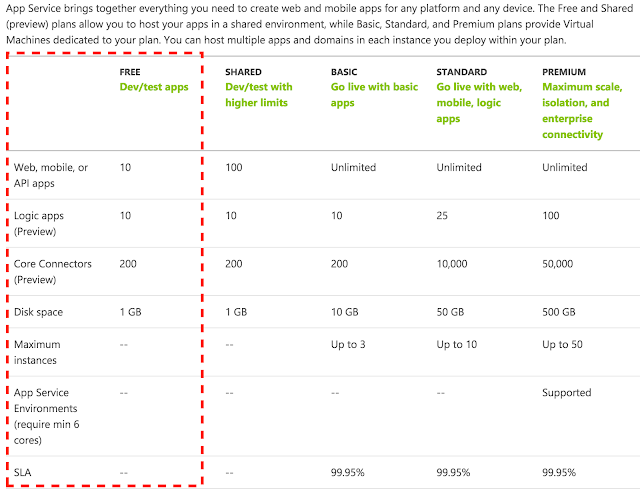
Advantages:- Free
- SSL(https)
- fixed IP address (it's important to configure Line BOT callback server's white list)

Deploy the "LineBOT" project generated in previous step
- Install Azure CLI & login
$ azure login
info:    Executing command login
|info:    To sign in, use a web browser to open the page https://aka.ms/devicelogin. Enter the code ********* to authenticate.
/info:    Added subscription Enterprise
info:    Added subscription Azure in Open
+
info:    login command OK
- Create the site by "azure site create --git {appname}"
$ azure site create --git phbot
azure site create --git phbot
info:    Executing command site create
+ Getting sites
+ Getting locations
help:    Choose a location
  1) South Central US
  2) North Europe
  3) West Europe
  4) Southeast Asia
  5) East Asia
  6) West US
  7) East US
  8) Japan West
  9) Japan East
  10) East US 2
  11) North Central US
  12) Central US
  13) Brazil South
  14) Canada Central
  15) Canada East
  : 5
info:    Creating a new web site at phbot.azurewebsites.net
\info:    Created website at phbot.azurewebsites.net
+
info:    Executing `git init`
info:    Creating default iisnode.yml file
info:    Initializing remote Azure repository
+ Updating site information
info:    Remote azure repository initialized
+ Getting site information
+ Getting user information
help:    Please provide the username for Git deployment
Publishing username: phchu
info:    Executing `git remote add azure https://phchu@phbot.scm.azurewebsites.net/phbot.git`
info:    A new remote, 'azure', has been added to your local git repository
info:    Use git locally to make changes to your site, commit, and then use 'git push azure master' to deploy to Azure
info:    site create command OK
- Deploy app to Azure
$ git add .
$ git commit -m "initial commit"
[master (root-commit) e2a8aba] initial commit
 12 files changed, 314 insertions(+)
 create mode 100644 .vscode/launch.json
 create mode 100644 app.js
 create mode 100755 bin/www
 create mode 100644 iisnode.yml
 create mode 100644 npm-debug.log
 create mode 100644 package.json
 create mode 100644 public/stylesheets/style.css
 create mode 100644 routes/index.js
 create mode 100644 routes/users.js
 create mode 100644 views/error.jade
 create mode 100644 views/index.jade
 create mode 100644 views/layout.jade
$ git push azure master
- Finally, launch the Azure app in the browser:

$ azure site log tail
info:    Executing command site log tail
+ Getting site information
Welcome, you are now connected to log-streaming service.
Line BOT trial account
- Channel ID
- Channel Secret (Click "Show" button to see it)
- MID
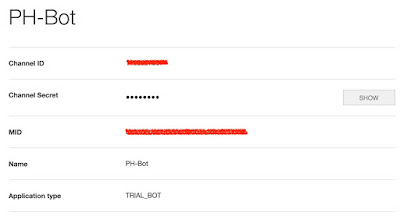
Configure the Line BOT account attributes in project
Creating a file named "config.js" as below:module.exports = {
'LINE':{
CHANNEL_ID: '1234567890',
CHANNEL_SERECT: '1ad5135ufygthrjekadf107d2',
MID: '0s98d7f65g4h3jki2u3y4t5re678w9',
}
};
Setup the "Callback URL" in channel
Callback URL format: http://[app_name].azurewebsites.net:433/[router]Ref.: Getting started with BOT API Trial-Registering a callback URL
https://phbot.azurewebsites.net:443/callback
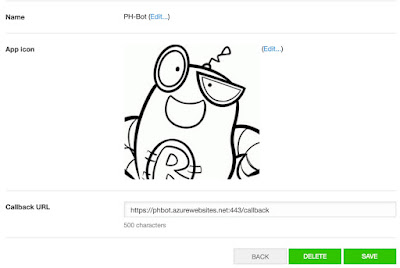
Create the callback router in the project
- Create "callback.js" in folder routes
var express = require('express'); var router = express.Router(); /* GET line bot callback. */ router.post('/', function(req, res, next) { res.send('respond with a resource'); }); module.exports = router; - Configure the routing in app.js
var callback = require('./routes/callback'); app.use('/callback', callback); - Verify the callback URL
Click the "VERIFY" button, and it will show "Success." message.

$ azure site log tail
info:    Executing command site log tail
+ Getting site information
Welcome, you are now connected to log-streaming service.
POST /callback 200 6.439 ms - 23
Line BOT API
Add fixed propreties in config.js
module.exports = {
    'LINE':{
 API: 'https://trialbot-api.line.me/v1/',
 CHANNEL_ID: '1234567890',
 CHANNEL_SERECT: '1ad5135ufygthrjekadf107d2',
 MID: '0s98d7f65g4h3jki2u3y4t5re678w9',
 TEXT: 1,
 IMAGE: 2,
    }
};
Receive message
- Add BOT as a friend by scanning the QR-code above Callback URL

- Add console.log in callback.js to show message content then commit it
/* GET line bot callback. */ router.post('/', function(req, res, next) { console.log('callback: ', req.body); var result = req.body.result; for(var i=0; i < result.length; i++){ var data = result[i].content; console.log('message content: ', data); } }); - Say "Hi, BOT" to the online Line BOT

Console:
callback:  { result:
   [ { content: [Object],
       createdTime: 1466386987962,
       eventType: '138311609000106303',
       from: 'u09y8t76r5e4ws8d7f6g5h4jdfghjkxcvbnmkl',
       fromChannel: 1341301815,
       id: 'WB1520-3548181394',
       to: [Object],
       toChannel: 1234567890 } ] }
message content:  { toType: 1,
  createdTime: 1466386987943,
  from: 'u09y8t76r5e4ws8d7f6g5h4jdfghjkxcvbnmkl',
  location: null,
  id: '4488676771230',
  to: [ 'sdfghjk8f7gh6j5k4l30lk98j7h6g5f4d3s' ],
  text: 'Hi, BOT',
  contentMetadata: { AT_RECV_MODE: '2', SKIP_BADGE_COUNT: 'true' },
  deliveredTime: 0,
  contentType: 1,
  seq: null }
Send text message
- Install module dependency: request
npm install request --save
- Add a new function sendMessage to reply(repeat) sender's message
function sendMessage(sender, content, type) { console.log('Send message: ', content); var query_fields = 'events'; var data; switch (type) { case config.LINE.TEXT: data = { to: [sender], //Array of target user. Max count: 150. toChannel: 1383378250, //Fixed value eventType: '138311608800106203',//Fixed value content: { contentType: type, toType: 1, text: content } }; break; default: break; } console.log('Send data: ', data); request({ url: config.LINE.API.concat(query_fields), headers: { 'Content-Type': 'application/json; charset=UTF-8', 'X-Line-ChannelID': config.LINE.CHANNEL_ID, 'X-Line-ChannelSecret': config.LINE.CHANNEL_SERECT, 'X-Line-Trusted-User-With-ACL': config.LINE.MID }, method: 'POST', body: JSON.stringify(data) }, function (error, response, body) { if (error) { console.log('Error sending message: ', error); } else if (response.body.error) { console.log('Error: ', response.body.error); } console.log('Send message response: ', body); }); } - Reply sender's message by repeating it
/* GET line bot callback. */ router.post('/', function(req, res, next) { console.log('callback: ', req.body); var result = req.body.result; for(var i = 0; i < result.length; i++){ var data = result[i].content; console.log('message content: ', data); sendMessage(data.from, data.text, config.LINE.TEXT); } }); - Commit and Try it

Ater replying message successfully, the BOT will receive a response with messageId and timestamp.
Console
Send message response:
{
 "failed": [],
 "messageId": "1466392481962",
 "timestamp": 1466392481962,
 "version": 1
}
If you received the following response, add the denied IP address in whitelist
Send message response:
{
  "statusCode": "427",
  "statusMessage": "Your ip address [213.73.167.123] is not allowed to access this API. Please add your IP to the IP whitelist in the developer center."
}
Get user profile
- Add a new function queryProfile to query sender's name
function queryProfile(sender, callback) { var query_fields = 'profiles?mids='; request({ url: config.LINE.API.concat(query_fields, sender), headers: { 'Content-Type': 'application/json; charset=UTF-8', 'X-Line-ChannelID': config.LINE.CHANNEL_ID, 'X-Line-ChannelSecret': config.LINE.CHANNEL_SERECT, 'X-Line-Trusted-User-With-ACL': config.LINE.MID }, method: 'GET' }, function (error, response, body) { if (error) { console.log('Error sending message: ', error); } else if (response.body.error) { console.log('Error: ', response.body.error); } var jsonResult = JSON.parse(body); console.log('Profile response: ', jsonResult); for (var i = 0; i < jsonResult.count; i++) { var userName = jsonResult.contacts[i].displayName; console.log('User name: ', userName); callback(userName); } }); } - Reply sender's message by saying "Hi, [user_name]"
/* GET line bot callback. */ router.post('/', function(req, res, next) { console.log('callback: ', req.body); var result = req.body.result; for(var i = 0; i < result.length; i++){ var data = result[i].content; console.log('message content: ', data); queryProfile(data.from, function(user) { var reply_msg = 'Hi, '.concat(user); sendMessage(data.from, reply_msg, config.LINE.TEXT); }); } }); - Commit and Try it

Console:
Profile response:
{ contacts:
   [ { displayName: 'phchu',
       mid: 'sdfghjk8f7gh6j5k4l30lk98j7h6g5f4d3s',
       pictureUrl: '',
       statusMessage: '' } ],
  count: 1,
  display: 1,
  pagingRequest: { start: 1, display: 1, sortBy: 'MID' },
  start: 1,
  total: 1 }
User name:  phchu
Send message:  Hi, phchu
Send data:  { to: [ 'sdfghjk8f7gh6j5k4l30lk98j7h6g5f4d3s' ],
  toChannel: 1383378250,
  eventType: '138311608800106203',
  content: { contentType: 1, toType: 1, text: 'Hi, phchu' } }
Send message response:  {"failed":[],"messageId":"1466394625241","timestamp":1466394625241,"version":1}
Send image message
- Reply sender's message by an image
If sender's message contains string "Hi,", replying message by saying "Hi, [user_name]". Otherwise, replying the image sticker as below.

- Add a new image message type in sendMessage function
case config.LINE.IMAGE: data = { to: [sender], toChannel: 1383378250, eventType: '138311608800106203', content: { contentType: type, toType: 1, originalContentUrl: content, previewImageUrl: content } }; break; - Commit and Try it

Console:
Send message:  https://sdl-stickershop.line.naver.jp/products/0/0/4/1331/android/stickers/23770.png
Send data:  { to: [ 'sdfghjk8f7gh6j5k4l30lk98j7h6g5f4d3s' ],
  toChannel: 1383378250,
  eventType: '138311608800106203',
  content:
   { contentType: 2,
     toType: 1,
     originalContentUrl: 'https://sdl-stickershop.line.naver.jp/products/0/0/4/1331/android/stickers/23770.png',
     previewImageUrl: 'https://sdl-stickershop.line.naver.jp/products/0/0/4/1331/android/stickers/23770.png' } }
Send message response:  {"failed":[],"messageId":"1466396249482","timestamp":1466396249482,"version":1}

Final Result

View on GitHub
2016年6月4日 星期六
Justifying text in an Android app using a WebView instead of TextView
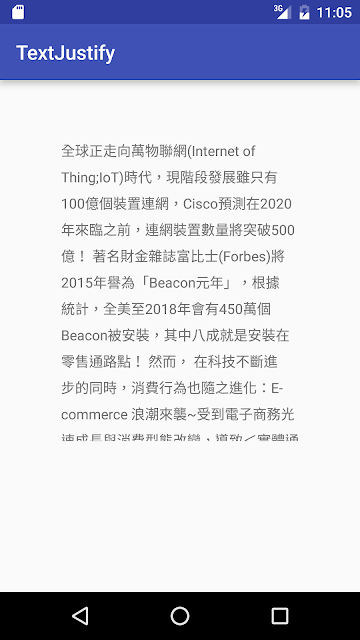
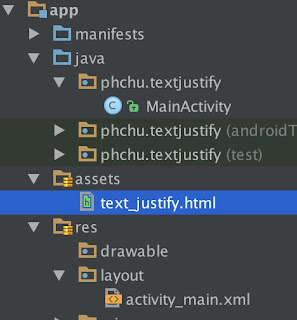
public class MainActivity extends AppCompatActivity {
    private static final String TEXT_JUSTIFY =
           "file:///android_asset/text_justify.html?info=";
    @Override
    protected void onCreate(Bundle savedInstanceState) {
        super.onCreate(savedInstanceState);
        setContentView(R.layout.activity_main);
        WebView desWebView = (WebView)findViewById(R.id.content_description_webview);
        String content = getResources().getString(R.string.content);
        desWebView.getSettings().setJavaScriptEnabled(true);
        desWebView.loadUrl(TEXT_JUSTIFY + content);
    }
}
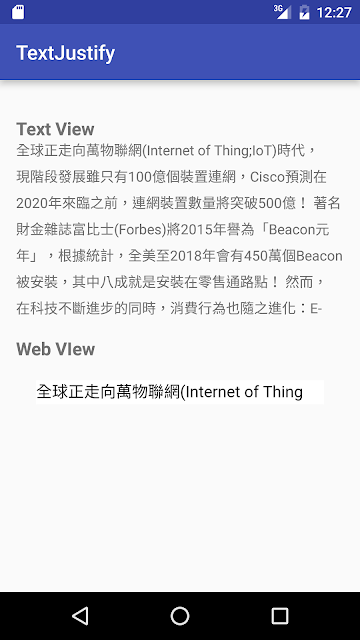
But there is also a problem: words after semicolon(";") of 1st line are disappear. The content string should be encoded before load in html page.
public class MainActivity extends AppCompatActivity {
    private static final String TEXT_JUSTIFY =
           "file:///android_asset/text_justify.html?info=";
    @Override
    protected void onCreate(Bundle savedInstanceState) {
        super.onCreate(savedInstanceState);
        setContentView(R.layout.activity_main);
        WebView desWebView = (WebView)findViewById(R.id.content_description_webview);
        String content = getResources().getString(R.string.content);
        desWebView.getSettings().setJavaScriptEnabled(true);
        try{
            desWebView.loadUrl(TEXT_JUSTIFY + URLEncoder.encode(content, "utf-8"));
        }catch (UnsupportedEncodingException uee){
            uee.printStackTrace();
        }
    }
}
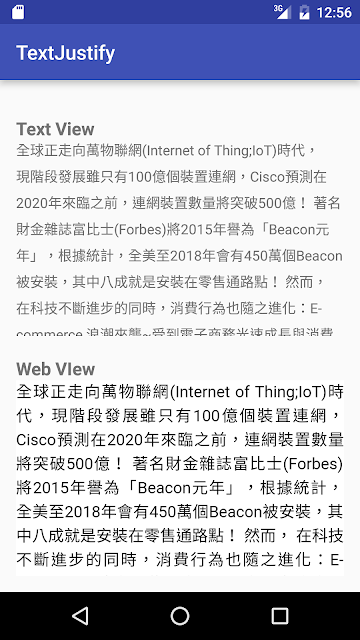
The method still have a problem, if the WebView on a layout with background color, it's not transparent.
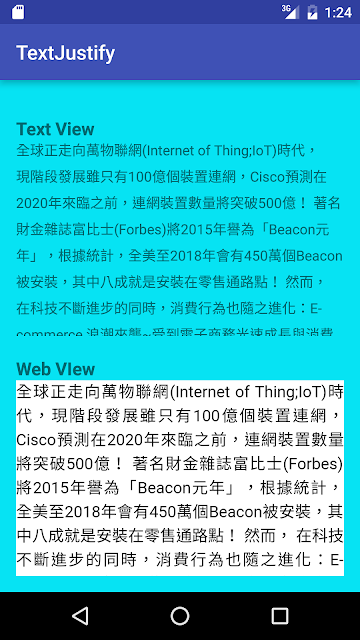
public class MainActivity extends AppCompatActivity {
    private static final String TEXT_JUSTIFY =
           "file:///android_asset/text_justify.html?info=";
    @Override
    protected void onCreate(Bundle savedInstanceState) {
        super.onCreate(savedInstanceState);
        setContentView(R.layout.activity_main);
        WebView desWebView = (WebView)findViewById(R.id.content_description_webview);
        String content = getResources().getString(R.string.content);
        desWebView.getSettings().setJavaScriptEnabled(true);
        desWebView.setBackgroundColor(0x00000000);
        try{
            desWebView.loadUrl(TEXT_JUSTIFY + URLEncoder.encode(content, "utf-8"));
        }catch (UnsupportedEncodingException uee){
            uee.printStackTrace();
        }
    }
}
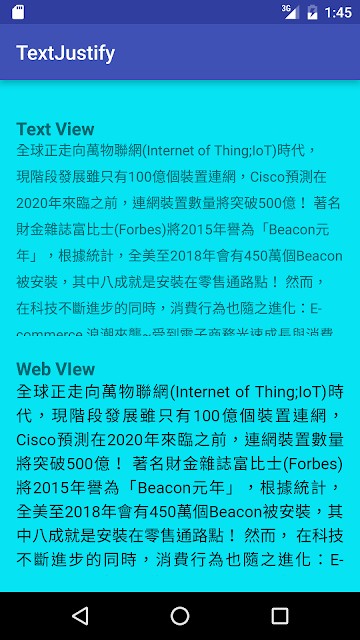
View Source Code on GitHub.
2016年5月19日 星期四
Basic CRUD operations in LokiJS

Installation
nam install lokijs --save
Initial Database
Basic
var db = new lokijs('db.json');The db.json will be created in the <root> folder, i.e. <root>/db.json.Custom path
var path = require('path');
var db = new lokijs(path.join(__dirname, '..', 'data', 'db.json'));
The db.json will be created in the <root>/data folder, i.e. <root>/data.db.json.Initial Collection
var info = db.getCollection('info');
if(!info){
  info = db.addCollection('info');
}
First, getCollection() by collection name 'info', and check if the collection exists. If the collection does not exist, then create a collection by addCollection() with collection name 'info'.CRUD operations
Create
info.insert({
  name: 'phchu',
  age: 18
});
Read
var user = info.findObject({'name':'phchu'});
The return result user is an object, that you can get other attributes by dot, e.g. user.age to get the phchu's age. The findObject() is not the only operation to query result from database, you can reference the API document (http://lokijs.org/#/docs#find) for details.Update
user.age = 30;
info.update(user);
Delete
info.remove(user);
Final step: Save
db.saveDatabase();
Load database
db.loadDatabase({}, function () {
var info = db.getCollection('info');
console.log('Info: ', info.data);
});
Put them together
function lokijsCRUD() {
  var info;
  db.loadDatabase({}, function () {
    //Initial collection
    info = db.getCollection('info');
    if(!info)
      info = db.addCollection('info');
    console.log('Initial info: ', info.data);
    //Create a user info
    info.insert({name: 'phchu',
                    age: 18});
    console.log('Add a user: ', info.data);
    //Read user's age
    var user = info.findObject({'name':'phchu'});
    console.log('User '+user.name+' is '+ user.age +' years old.');
    //Update user's age
    user.age = 30;
    info.update(user);
    console.log('User '+user.name+' is '+ user.age +' years old.');
    //Delete the user
    info.remove(user);
    console.log('Collection info: ', info.data);
    //Save
    profilesDB.saveDatabase();
  });
}
Result
Initial info: []
Add a user: [ { name: 'phchu',
age: 18,
meta: { revision: 0, created: 1463638026851, version: 0 },
'$loki': 1 } ]
User phchu is 18 years old.
User phchu is 30 years old.
Collection info: []
2010年6月16日 星期三
How to Insert URL References into BibTex
- Import the url package in tex file: \usepackage{url}
- Insert a reference as misc. Then input your URL under “\url{URL}” in howpublished as the following example:
@misc{Tool:ATL,

title = {ATLAS Transformation Language, Version 3.0.0},

institution = {The Eclipse Foundation},

Howpublished={\url{http://www.eclipse.org/m2m/atl/}}

}
Reference: BibTex Issues – How to Insert Url References
2010年6月2日 星期三
Using sub-figures in LaTex document
\usepackage{subfigure}


\begin{figure}[!ht]

\centering

\subfigure[subfigure1 caption] {

\label{fig:subfigure1}

\includegraphics[width=?]{subfigure1.eps}

}

\hspace{1cm}%Theinterval between subfigure1 and subfigure2\subfigure[subfigure2 caption] {

\label{fig:subfigure2}

\includegraphics[width=?]{subfigure2.eps}

}

\caption{Global figure caption}\label{fig:globalFigure}

\end{figure}
2010年3月25日 星期四
Quotes << >>/«» in LaTex
- Use package fontec: \usepackage[T1]{fontenc}
- Use \guillemotleft (for "<<") and \guillemotright (for ">>")
- Add '\' in the end of \guillemotright as \guillemotright\ to avoid narrow space
2009年12月8日 星期二
Underline in bib
URL = "http://www.omg.org/technology/documents/formal/profile_corba.htm"should be presented as
2009年9月24日 星期四
Bibliographies Management Tool
Commercial- EndNote
- EndNote Web:學校有購買EndNote才可由學校IP註冊使用
- Papers:only for mac
2009年8月26日 星期三
BibTeX and bibliography styles
STANDARD ENTRY TYPES:
- @article
- An article from a journal or magazine
- @book
- A book with an explicit publisher
- @booklet
- A work that is printed and bound, but without a named publisher or sponsoring institution
- @conference
- The same as inproceedings
- @inbook
- A part of a book, which may be a chapter (or section or whatever) and/or a range of pages
- @incollection
- A part of a book having its own title
- @inproceedings
- An article in a conference proceedings
- @manual
- Technical documentation
- @mastersthesis
- A Master's thesis
- @misc
- Use this type when nothing else fits
- @phdthesis
- A PhD thesis
- @proceedings
- The proceedings of a conference
- @techreport
- A report published by a school or other institution, usually numbered within a series
- @unpublished
- A document having an author and title, but not formally published
- @collection
- Not a standard entry type. Use proceedings instead.
- @patent
- Not a standard entry type.
(4) STANDARD FIELDS
- address
- Usually the address of the publisher or other type of institution. For major publishing houses, van Leunen recommends omitting the information entirely. For small publishers, on the other hand, you can help the reader by giving the complete address.
- annote
- An annotation. It is not used by the standard bibliography styles, but may be used by others that produce an annotated bibliography.
- author
- The name(s) of the author(s), in the format described in the LaTeX book.
- booktitle
- Title of a book, part of which is being cited. See the LaTeX book for how to type titles. For book entries, use the title field instead.
- chapter
- A chapter (or section or whatever) number.
- crossref
- The database key of the entry being cross referenced. Any fields that are missing from the current record are inherited from the field being cross referenced.
- edition
- The edition of a book---for example, ``Second''. This should be an ordinal, and should have the first letter capitalized, as shown here; the standard styles convert to lower case when necessary.
- editor
- Name(s) of editor(s), typed as indicated in the LaTeX book. If there is also an author field, then the editor field gives the editor of the book or collection in which the reference appears.
- howpublished
- How something strange has been published. The first word should be capitalized.
- institution
- The sponsoring institution of a technical report.
- journal
- A journal name. Abbreviations are provided for many journals.
- key
- Used for alphabetizing, cross referencing, and creating a label when the ``author'' information is missing. This field should not be confused with the key that appears in the cite command and at the beginning of the database entry.
- month
- The month in which the work was published or, for an unpublished work, in which it was written. You should use the standard three-letter abbreviation, as described in Appendix B.1.3 of the LaTeX book.
- note
- Any additional information that can help the reader. The first word should be capitalized.
- number
- The number of a journal, magazine, technical report, or of a work in a series. An issue of a journal or magazine is usually identified by its volume and number; the organization that issues a technical report usually gives it a number; and sometimes books are given numbers in a named series.
- organization
- The organization that sponsors a conference or that publishes a manual.
- pages
- One or more page numbers or range of numbers, such as 42--111 or 7,41,73--97 or 43+ (the `+' in this last example indicates pages following that don't form a simple range). To make it easier to maintain Scribe-compatible databases, the standard styles convert a single dash (as in 7-33) to the double dash used in TeX to denote number ranges (as in 7--33).
- publisher
- The publisher's name.
- school
- The name of the school where a thesis was written.
- series
- The name of a series or set of books. When citing an entire book, the the title field gives its title and an optional series field gives the name of a series or multi-volume set in which the book is published.
- title
- The work's title, typed as explained in the LaTeX book.
- type
- The type of a technical report---for example, ``Research Note''.
- volume
- The volume of a journal or multi-volume book.
- year
- The year of publication or, for an unpublished work, the year it was written. Generally it should consist of four numerals, such as 1984, although the standard styles can handle any year whose last four nonpunctuation characters are numerals, such as `\hbox{(about 1984)}'.
- affiliation
- The authors affiliation.
- abstract
- An abstract of the work.
- contents
- A Table of Contents
- copyright
- Copyright information.
- ISBN
- The International Standard Book Number.
- ISSN
- The International Standard Serial Number. Used to identify a journal.
- keywords
- Key words used for searching or possibly for annotation.
- language
- The language the document is in.
- location
- A location associated with the entry, such as the city in which a conference took place.
- LCCN
- The Library of Congress Call Number.
- mrnumber
- The Mathematical Reviews number.
- URL
- The WWW Universal Resource Locator that points to the item being referenced. This often is used for technical reports to point to the ftp site where the postscript source of the report is located.
Other (nonstandard) fields
2009年3月31日 星期二
[TeXmaker]Spell Checker - Aspell
Download:
- Windows(http://aspell.net/win32/)
- Mac OS X interface for Aspell (http://cocoaspell.leuski.net/)
- Download "Full installer"
- Download and install English dictionary
- 在選項 > 編輯器確認 Aspell 的路徑 (應該不用改), 然後把 Aspell 語系, 設成 eng。
這樣就裝好了。要使用拼字檢查時, 用選單選編輯 > 拼字檢查。
- http://riemann.math.nccu.edu.tw/forum/viewtopic.php?f=5&t=1104&sid=0a8ad069998b157aa0ec329d55cb56f6
2009年2月12日 星期四
Editor Tools and Environment
Freeware- Texmaker- http://www.xm1math.net/texmaker/index.html
- Texlipse (Eclipse Plugin) -http://texlipse.sourceforge.net/
- WinEdit
- cwTEX- http://homepage.ntu.edu.tw/~ntut019/cwtex/cwtex.html
- chitex-http://www.math.ncu.edu.tw/~yih/intro.htm
2009年2月11日 星期三
Adding Source Code Listings to LaTeX Documents
Package- http://tug.ctan.org/cgi-bin/ctanPackageInformation.py?id=listings
Installation
- Put package in "./tex/latex/listings"
- Update Mitex name database
- 所有程式->MiKTeX 2.5->Setting
- Press "Refresh FNDB" button
- 所有程式->MiKTeX 2.5->Setting
- http://www.usq.edu.au/users/leis/notes/latex/code.html
- 標準的使用方式之一是用一個叫 fancyvrb 的套件, 改善原有 verbatim 的功能。使用說明可以參考:Fancy Verbatims in LaTeX (PDF 檔)
2007年8月14日 星期二
Collection Types
The Collection Types
There are five collection types. Four of them—the Set, OrderedSet, Bag, and Sequence types—are concrete types and can be used in expressions. The fifth, the Collection type, is the abstract supertype of the other four and is used to define the operations common to all collection types.
The four concrete collection types are defined as follows:
- A Set is a collection that contains instances of a valid OCL type. A set does not contain duplicate elements; any instance can be present only once. Elements in a set are not ordered.
- An OrderedSet is a set whose elements are ordered.
- A Bag is a collection that may contain duplicate elements. A bag is typically the result of combining navigations. Elements in a bag are not ordered.
- A Sequence is a bag whose elements are ordered.
(Note that a value of type Sequence or OrderedSet is ordered and not sorted.)Set { 1 , 2 , 5 , 88 }
Set { 'apple' , 'orange', 'strawberry' }
OrderedSet { 'apple' , 'orange', 'strawberry', 'pear' }
Sequence { 1, 3, 45, 2, 3 }
Sequence { 'ape', 'nut' }
Bag {1 , 3 , 4, 3, 5 }
Sequence{ 1..(6 + 4) }
Sequence{ 1..10 }
-- are both identical to
Sequence{ 1, 2, 3, 4, 5, 6, 7, 8, 9, 10 }
Collection Type Expressions
When the type of an element is a collection, this can be indicated using the words Set, OrderedSet, Bag, or Sequence, and the type of the elements of the collection between rounded brackets, as shown in the following examples:Set(Customer)
Sequence(Set(ProgramPartners))
OrderedSet(ServiceLevel)
Bag(Burning)
Collection Operations
context LoyaltyProgram
inv: self.participants->size()
Treating Instances as Collections
Because the OCL syntax for applying collection operations is different from that for user-defined type operations, you can use a single instance as a collection. This collection is considered to be a set with the instance as the only element.
| As an instance: | As a collection: |
context Membership | context Membership |
Collections of Collections
When a collection is inserted into another collection, the resulting collection is automatically flattened; the elements of the inserted collection are considered direct elements of the resulting collection.Set {Set{1,2}, Set{3,4}, Set{5,6}}(flattened)
Set { 1, 2, 3, 4, 5, 6 }
Operations on Collection Types
Standard operations on all collection types
In the invariant, you specify that the actual service level of a membership must be one of the service levels of the program to which the membership belongs:context Membership
inv: programs.levels ->includes(currentLevel)
The following invariant specifies that the available services for a service level must be offered by a partner of the loyalty program to which the service level belongs:context ServiceLevel
inv:program.partners->includesAll(self.availableServices.partner)
Operations with Variant Meaning
Collection operations with variant meaning
Set {Set{1,2}, Set{2,3}, Set{4,5,6}}
Set { 1, 2, 3, 4, 5, 6 }(flatten)Bag {Set{1,2}, Set{1,2}, Set{4,5,6}}
Bag { 1, 1, 2, 2, 4, 5, 6 }(flatten)Sequence {Set{1,2}, Set{2,3}, Set{4,5,6}}
Sequence { 2, 1, 2, 3, 5, 6, 4 }(flatten)Set{1,4,7,10} - Set{4,7} = Set{1,10}
OrderedSet{12,9,6,3} - Set{1,3,2} = OrderedSet{12,9,6}Set{1,4,7,10}.symmetricDifference(Set{4,5,7}) = Set{1,5,10}Operations on OrderedSets and Sequences Only
Sequence{'a','b','c','c','d','e'}->first()= 'a'
OrderedSet{'a','b','c','d'}->last() = 'd'Sequence{'a','b','c','c','d','e'}->at(3)= 'c'
Sequence{'a','b','c','c','d','e'}->indexOf( 'c' ) = 3OrderedSet{'a','b','c','d'}->insertAt(3,'X’)= OrderedSet{'a','b','X','c','d'}Sequence{'a','b','c','c','d','e'}-> subSequence(3,5)= Sequence{'c','c','d'}OrderedSet{'a','b','c','d'}->subOrderedSet( 2, 3 ) = OrderedSet{'b','c'}
Sequence{'a','b','c','c','d','e'}-> append('X’)= Sequence{'a','b','c','c','d','e','X'}

Sequence{'a','b','c','c','d','e'}-> prepend('X’)= Sequence{'X','a','b','c','c','d','e'}
Loop Operations or Iterators
Loop operations on all collection types

Iterator Variables
context LoyaltyProgram
inv: self.Membership.account->isUnique(accacc.number)

context LoyaltyProgram
inv: self.Membership.account->isUnique(acc: LoyaltyAccountacc.number)

context LoyaltyProgram
inv: self.Membership.account->isUnique(number)
The sortedBy Operation
context LoyaltyProgram
def: sortedAccounts:Sequence(LoyaltyAccount) = self.Membership.account->sortedBy(number)
The select Operation
context CustomerCard
inv: self.transactions->select(points>100)->notEmpty()
element = collection.firstElement();
while(collection.notEmpty()) do
    if()
    then
        result.add(element);
    endif
    element = collection.nextElement();
endwhile
return result;
The reject Operation
context Customer
inv: Membership.account->select(points>0)

context Customer
inv: Membership.account-> reject(not(points>0))
The any Operation
self.Membership.account->any(number<10000)The forAll Operation
context LoyaltyProgram
inv: participants->forAll(age()<=70)context LoyaltyProgram
inv: self.participants->forAll(c1 ▏self.participants->forAll( c2 ▏c1 <> c2 implies c1.name <> c2.name ))
context LoyaltyProgram
inv: self.participants->forAll(c1, c2 ▏c1 <> c2 implies c1.name <> c2.name)The exists Operation
context LoyaltyAccount
inv: points > 0 implies transactions-> exists(t ▏t.points > 0)collection->exists(‹expression›)
not collection->forAll(not ‹expression›)The one Operation
context LoyaltyProgram
inv: self.Membership.account-> one(number<10000)
The collect Operation
context LoyaltyAccount
inv: transactions->collect( points )-> exists( p : Integer ▏p = 500 )

context LoyaltyAccount
inv: transactions.points->exists(p : Integer ▏p = 500 )
The collectNested Operation
self.programs->collect(partners)-> collectNested( deliveredServices )the type of this expression is Bag(Set(Service))
The iterate Operation
collection->iterate( element : Type1; result:Type2 = ‹expression› ▏‹expression-with-element-and-result›)Set{1,2,3}->iterate( i: Integer, sum: Integer = 0 ▏sum + i )context ProgramPartner
def:getBurningTransactions():Set(Transaction) =
self.deliveredServices.transactions->iterate(
t: Transaction;
resultSet:Set(Transaction) = Set{}
if t.oclIsTypeOf(Burning) then
resultSet.including(t)
else
resultSet
endif
)
2007年7月17日 星期二
Basic OCL Elements
Expressions, Types, and Values
Types in OCL are divided into the following groups:Basic Types and Operators
The Boolean Type

Example: The result of the following sample expression is true if for every service it can be said that when it offers bonus points it never burns bonus points
context Service
inv: self.pointsEarned > 0 implies not (self.pointsBurned = 0)
Another interesting operation on the Boolean type is the if-then-elseif ‹boolean OCL expression›
then ‹OCL expression›
else ‹OCL expression›
endif
All these examples are expressions of the Boolean type, which result in true:
2654 * 4.3 + 101 = 11513.2
(3.2).floor() / 3 = 1
1.175 * (-8.9).abs() - 10 = 0.4575
12 > 22.7 = false
12.max(33) = 33
33.max(12) = 33
13.mod(2) = 1
13.div(2) = 6
33.7.min(12) = 12.0
-24.abs() = 24
(-2.4).floor() = -3

The String Types
All these examples are expressions of the Boolean type, and result in true:
'Anneke'.size() = 6
('Anneke' = 'Jos') = false
'Anneke '.concat('and Jos') = 'Anneke and Jos'
'Anneke'.toUpper() = 'ANNEKE'
'Anneke'.toLower() = 'anneke'
'Anneke and Jos'.substring(12, 14) = 'Jos'

Precedence Rules

Comments
An OCL line comment begins with two hyphens. All text from the hyphens to the end of the line is considered to be a comment. Comments longer than one line may be enclosed between /* and */.
-- the expression 20 * 5 + 4 should be evaluated here
20 * 5 + 4 -- this is a comment
/* this is a very long comment that does not enlighten the reader one bit about what the expression is really about */
20 * -- this is a comment 5 + 4 (invalid OCL expression)